
Setting Up a Git Server on K3S with Gitea
One of my big goals for my home lab is to set up a completely local deployment pipeline to practice Continuous Delivery in a safe environment. To that end, I set the cluster up with Gitea, an open source git server with support for GitHub Action-like delivery pipelines.
Solving the storage problem by adding NFS support to my NAS
Thus far, my Raspberry Pis in my K3S cluster have been using local storage on their installed SD cards. If I’m hosting a Git server on my cluster, those will quickly fill up, so I need another storage option. Fortunately, I already have network-attached storage available in the form of a TrueNAS server that I run on an old PC. TrueNAS supports connections using NFS - Network File System - which allows the K3S cluster to access folders on the NAS over the network as if they are part of a local file system.
TrueNAS supports NFS by default, but it needs an NFS share defined first. Since I’m using this share as a folder for my Gitea installation, I’ve made a share pointing to a folder called gitea in my NAS.
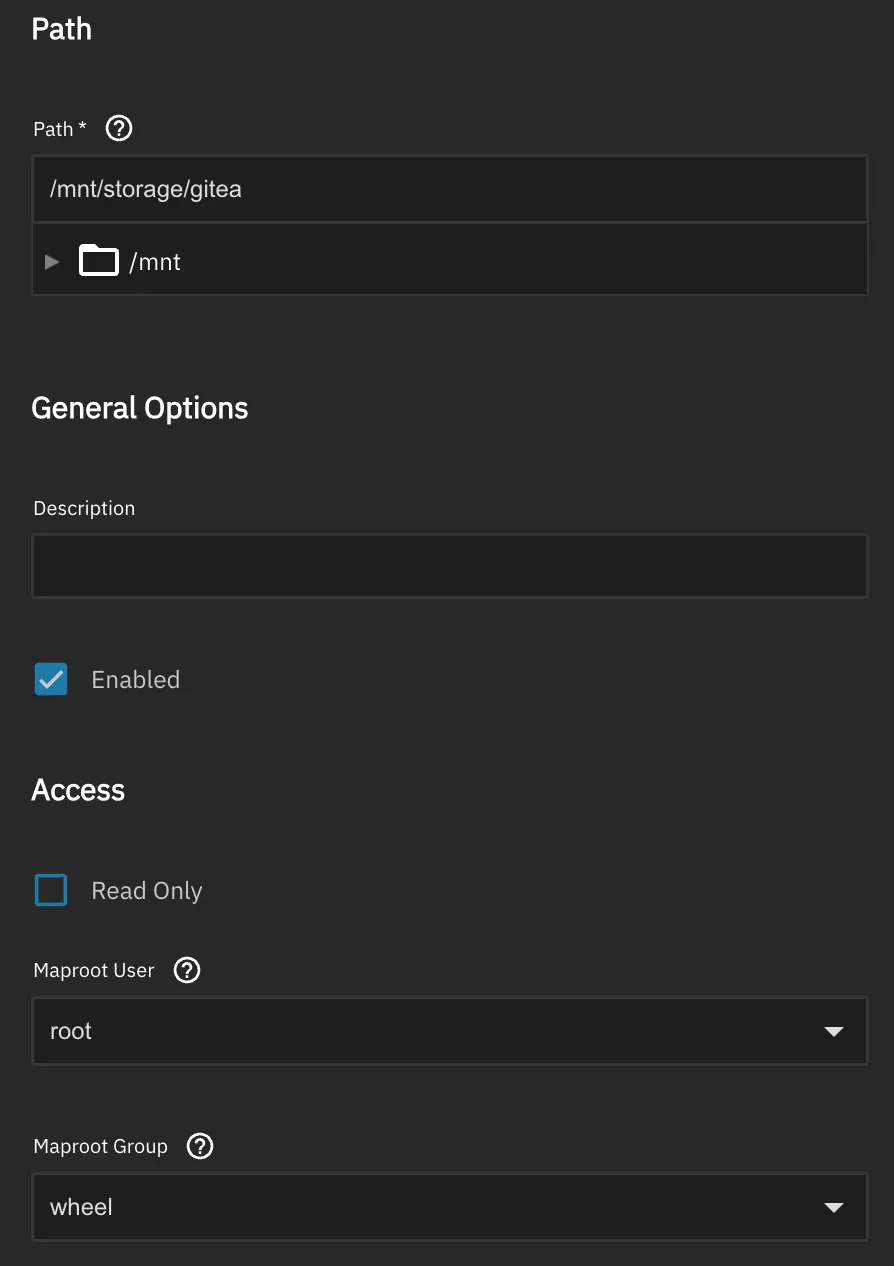
For now the user is set to root and the usergroup to wheel to avoid permissions issues during setup. Tightening these permissions later will improve security.
Simplifying configuration of cluster machines using Ansible
With the server side of my NFS running as a service on my NAS, I needed to set up the client side on my Raspberry Pi K3S nodes. To do that I had to first install an NFS client on all of my nodes. But this is probably not the only time I would need to log into these nodes and add new functionality on a machine level, and I don’t want to be constantly logging into each node to make manual updates. I can’t guarantee I won’t make a typo or another kind of mistake that gets these nodes out-of-sync, so I want to have some way of editing the configuration once and applying it to every node. Hence I set up infrastructure-as-code (IaC) software that allows me to do just that.
While Chef and Puppet would be good options for a larger, more complex fleet, Ansible is the answer to my IaC needs. No agents need to run on the Pis, the configuration for each machine on the fleet is defined in a text-based playbook file, and it allows me to track the configuration of the K3S nodes in source control.
Setting up SSH key auth
Ansible requires SSH key auth, so I set up key auth on each Pi.
# generate the key
ssh-keygen -t ed25519 -C "ansible"

# copy to each of the nodes
# the name of the user is pi
ssh-copy-id pi@raspberrypi1
ssh-copy-id pi@raspberrypi2
ssh-copy-id pi@raspberrypi3
ssh-copy-id pi@raspberrypi4
Running ansible playbook
I need to keep track of my fleet configuration, so I created a directory named pi-cluster. In that directory I created two files: inventory.ini and setup-nodes.yml.
inventory.ini holds the inventory of all of the hosts in my fleet, giving names to each of the hosts and putting them into groups — k3s_server for the K3S server node, k3s_agents for each of the agent nodes, and k3s_cluster as a group of all of the machines in the cluster. It also sets the ansible_user and ansible_python_interpreter, as it needs a user on each node that has SSH access and it needs the location of the Python interpreter on each node.
[k3s_server]
pi-server ansible_host=192.168.50.X

[k3s_agents]
pi-agent1 ansible_host=192.168.50.X
pi-agent2 ansible_host=192.168.50.X
pi-agent3 ansible_host=192.168.50.X

[k3s_cluster:children]
k3s_server
k3s_agents

[k3s_cluster:vars]
ansible_user=pi
ansible_python_interpreter=/usr/bin/python3
The setup-nodes.yml file is the playbook file containing configuration for each of the nodes in the cluster. I applied the configuration to k3s_cluster so it applies to all of the nodes in the cluster, and I set the NFS server IP and the mount path on the NFS. The playbook updates the package manager cache, installs the required packages for NFS support, enables and starts rpcbind, tests if the NFS mount is reachable, and prints out the result of that test.
---
- name: Configure k3s cluster nodes
  hosts: k3s_cluster
  become: true

  vars:
    nfs_server: "192.168.50.X"
    nfs_mount_path: "/mnt/tank/k3s"

  tasks:
    - name: Update apt cache
      apt:
        update_cache: true
        cache_valid_time: 3600

    - name: Install required packages
      apt:
        name:
          - nfs-common        # NFS client for TrueNAS mounts
          - open-iscsi        # iSCSI support (useful to have)
          - curl
          - git
        state: present

    - name: Enable and start rpcbind (required for NFS)
      systemd:
        name: rpcbind
        enabled: true
        state: started

    - name: Test NFS mount is reachable
      command: "showmount -e {{ nfs_server }}"
      register: nfs_exports
      changed_when: false
      failed_when: false

    - name: Show NFS exports from TrueNAS
      debug:
        var: nfs_exports.stdout_lines
Playbooks in Ansible are declarative and idempotent, so they describe the desired end state of the configuration and have the same end result no matter how many times they are run. By keeping my playbooks in source control I have a tracked record of the configuration of my physical fleet.
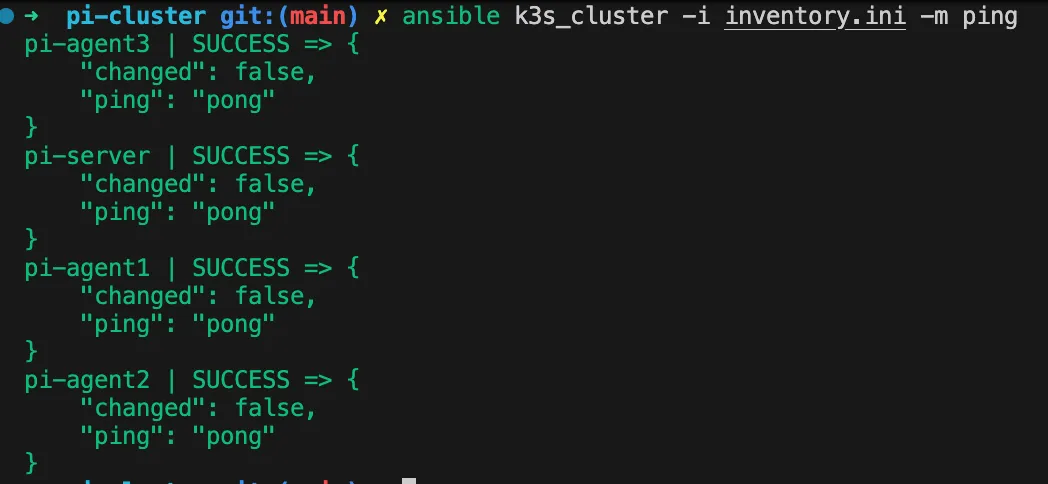
I tested the connectivity of my cluster by running a ping against the inventory.
ansible k3s_cluster -i inventory.ini -m pingPing succeeds so I know I have connectivity.
I ran the playbook and verified that each node has access to the NFS mount.
ansible-playbook -i inventory.ini setup-nodes.ymlInstalling the NFS StorageClass Provisioner
I used Helm to install the NFS Subdir external provisioner, allowing me to create subdirectories on the NFS share automatically when I create a PersistentVolumeClaim in my K3S cluster.
# Add repo for the provisioner
helm repo add nfs-subdir-external-provisioner \
  https://kubernetes-sigs.github.io/nfs-subdir-external-provisioner/

# install the provisioner
helm install nfs-provisioner \
  nfs-subdir-external-provisioner/nfs-subdir-external-provisioner \
  --namespace kube-system \
  --set nfs.server=192.168.50.24 \
  --set nfs.path=/mnt/tank/k3s \
  --set storageClass.name=truenas-nfs \
  --set storageClass.defaultClass=true
I confirmed that truenas-nfs is running as a default storage class by running the following command.
kubectl get storageclass
I can now store my git repository on my NAS in an NFS share.
Adding a local Git server and Continuous Delivery Pipeline solution using Gitea
I used helm to install Gitea using my NAS for storage. This took a little trial and error, as part of the install is a PostgreSQL cluster with 2 replica pods that initialize from a primary pod. The first time I tried to install Gitea that replication took too long and the liveness probe executed before the replication was finished. That caused some errors (Error code 137) and a persistent CrashLoopBackOff status for the replica pods. I increased the delay before the livenessProbe and the readinessProbe for these pods using a values.yaml file:
postgresql-ha:
  postgresql:
    livenessProbe:
      initialDelaySeconds: 300   # 5 minutes — adjust based on DB size
      timeoutSeconds: 10
      failureThreshold: 6
    readinessProbe:
      initialDelaySeconds: 300   # set this too, keeps traffic away until ready
      timeoutSeconds: 10
      failureThreshold: 6
# Add repo and update
helm repo add gitea-charts https://dl.gitea.com/charts/
helm repo update
# Install gitea and set the admin and persistence settings
helm install gitea gitea-charts/gitea \
--file values.yaml \
--namespace gitea \
--create-namespace \
--set gitea.admin.username=admin \
--set gitea.admin.password=yourpassword \
--set gitea.admin.email=you@example.com \
--set persistence.storageClass=truenas-nfs \
--set persistence.size=20GiNext step: deploying an app using a continuous delivery pipeline on Gitea
Now that I have Gitea running on my cluster, I have a local Git server with pipeline functionality. In my next post, I’ll take the next step to publishing my first project using a pipeline on Gitea.
Comments
No comments yet. Be the first to reply on Bluesky!